How to create a webservice key for PrestaShop
Create a read-only PrestaShop webservice key so PrestaShop Importer can securely connect your store to Shopify.
Last updated October 20, 2026
Also available in: Deutsch · Español · Français · Nederlands
If these steps seem overwhelming, you can send us a message and we will help you set up your API keys within 24 hours.
Watch how to create a PrestaShop webservice key
Follow the video to create a read-only key for PrestaShop Importer. Choose View (GET) permission and keep your key private. You can also follow the written steps below.
Watch the webservice-key tutorial on YouTube (1 minute 10 seconds, in English).
Step 1 Open Advanced Parameters
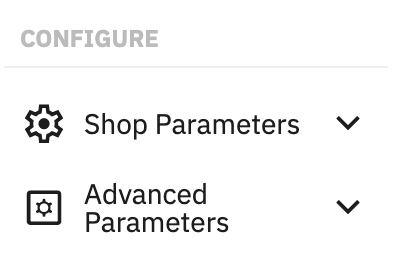
In the side menu, find Configure and click Advanced Parameters.
Step 2 Open Webservice
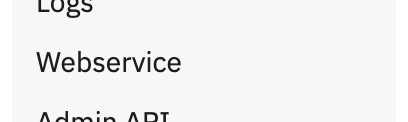
In the dropdown menu, click Webservice.
Step 3 Add a webservice key
Click Add new webservice key at the top right of the page.

Step 4 Configure the key
You are now on the page where you can add a new webservice key.
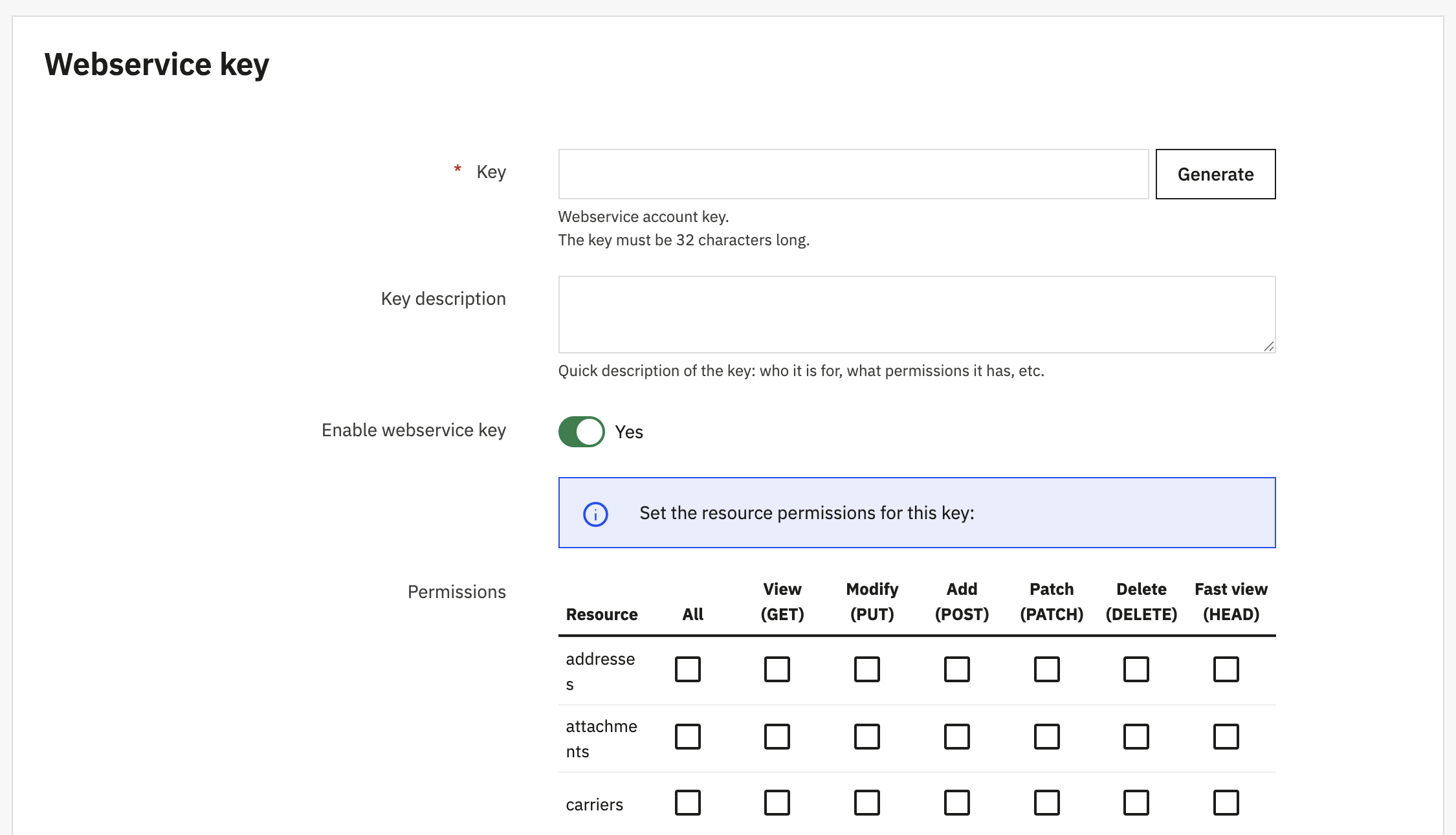
- Click Generate to generate a random key.
- Enter a key description, for example Shopify.
- Make sure Enable webservice key is set to Yes.
- Click View (GET) to select all the checkboxes below that header.
- Click Save at the bottom of the page.
- Copy the value of the key and enter it in our app.
For an existing key, open it for editing instead of generating a new one. Keep View (GET) enabled for all resources so the migration can read related data as well as the resources checked during setup. The scan needs categories, customers, orders, order_states, languages, products and content_management_system (CMS pages), plus manufacturers on PrestaShop 1.7 and later. GET access to shops is optional for older keys, but enables shop discovery and selection.
On a multistore installation, associate the key with every active shop before saving it. This is separate from the GET permission grid.
After changing permissions or shop associations, save the key in PrestaShop. Connect again in PrestaShop Importer, or choose Retry store scan if a scan has already failed. Counts shown as Unavailable are not zero counts. You can continue once the scan succeeds. If the app says the scan could not finish, check that your store is reachable and retry.
If you run multiple shops in one PrestaShop installation, also follow the multistore webservice key setup before starting your migration.
Continue in the guided migration
In PrestaShop Importer, choose to migrate yourself, get Expert help or use Full migration + design. Connect with the source-store URL and the Webservice key you created above. Choose your scope in the guided checklist, then the main language if your store is multilingual. Choose full descriptions, short descriptions or both and check the preview of a real product. The other description is saved in custom.short_description or custom.description. You can then try the free demo with up to 100 products, 50 customers and 50 orders or start the full migration. Nothing is imported until you start.
Review existing Shopify data before starting
If Shopify already contains data and no cleanup has completed, choose whether to start clean, overwrite existing products or keep everything and add alongside. Starting clean permanently deletes the selected existing Shopify products, collections, orders and/or customers when you start a migration, including a demo. This can include data that was not imported by the app. Saving the choice deletes nothing and you can change it until you start. Review the selected data and acknowledge the deletion before proceeding. Replacing or deleting products can leave existing order line items unlinked from those products.
If a cleanup has already completed, the guided setup no longer shows Your Shopify data. For example, after cleanup during a test migration, moving to the full migration does not ask this question again or delete data a second time. You can also delete Shopify data separately before migrating. Read the Clean store steps and warnings.