Clean your Shopify store with Store Importer
Delete selected Shopify data with WooCommerce Importer or PrestaShop Importer. Review the warnings, blockers and steps before starting.
Last updated October 20, 2026
Also available in: Deutsch · Español · Français · Nederlands
WooCommerce Importer and PrestaShop Importer include Clean store in the app menu. You can permanently delete selected Shopify data without connecting a source store, starting a migration, paying or enabling syncing first.
Before you delete anything
Export a backup first. Deletion cannot be undone and the app cannot restore deleted data. Check the target Shopify store shown on the page before you continue.
You can select products, collections, orders and customers. The selection is by data type, so it can include data that was not imported by either app. Deleting products can leave existing order line items unlinked. Customers with remaining orders may not be deletable, and Shopify can restrict which orders can be deleted.
Check, select and confirm
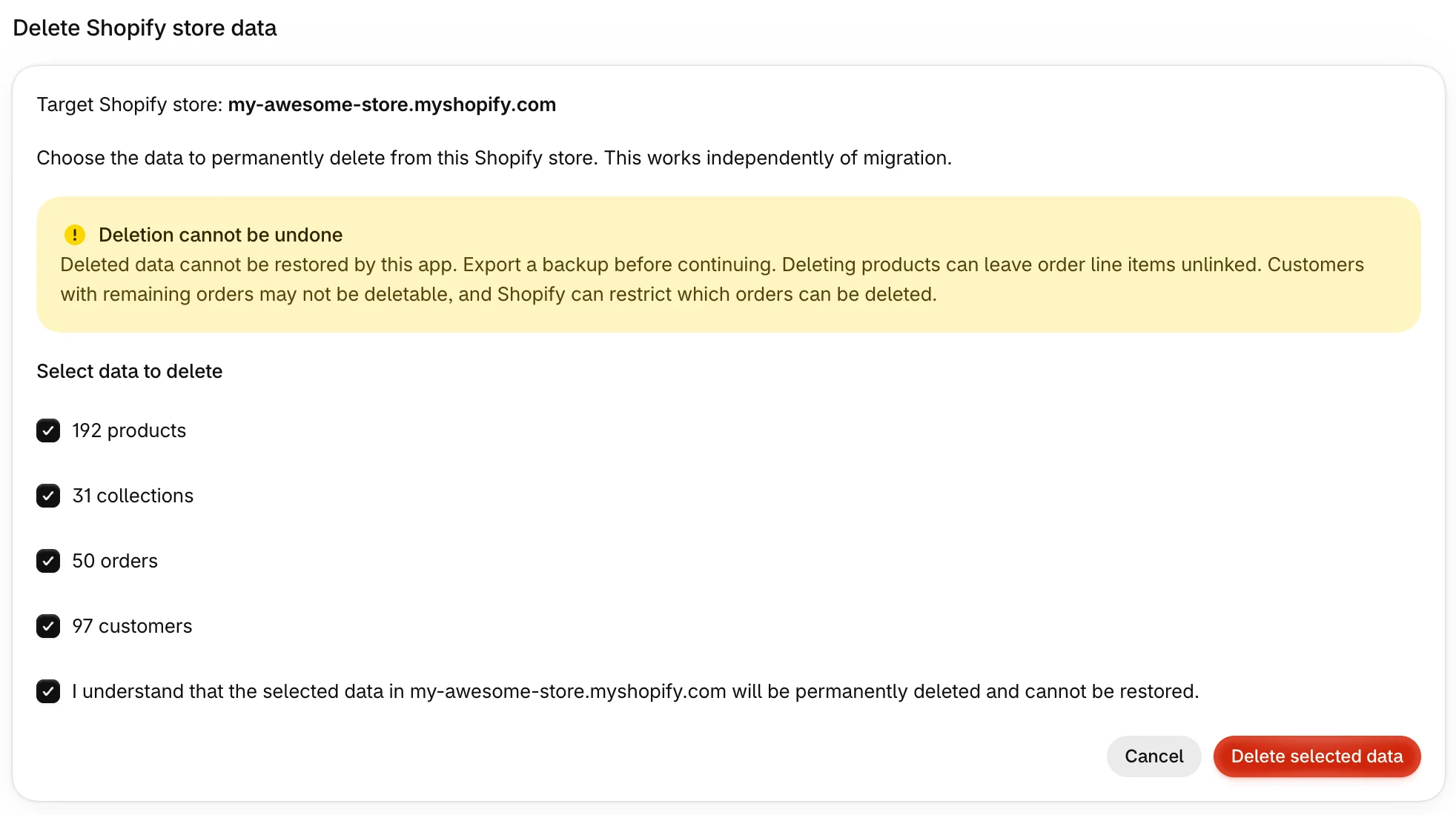
- Open Clean store in the app menu and check the target Shopify store.
- Click Check Shopify for existing data to get fresh counts for each supported type. Counts stay visible for 15 minutes. After that, check Shopify again.
- Under Select data to delete, select the data types you intend to remove.
- Tick the confirmation that the selected data in the named store will be permanently deleted and cannot be restored.
- Click Delete selected data to start. Cancel discards your selection before deletion starts.
The page shows progress, completion or failure. If Shopify data changed between checking and deleting, the cleanup stops with No data was deleted. Check Shopify again before making a new selection.
If cleanup is blocked or interrupted
Cleanup is blocked while a migration or update job is in progress, automatic syncing is enabled for the store or a migration cleanup is running. The page names the blocking job and links to the dashboard through View migration and sync status. Review that status before trying again.
An interrupted cleanup is reported as failed. Items already deleted stay deleted. Check Shopify again to see what remains and start a new cleanup if needed.
While a Clean store cleanup is queued or running, starting a migration or sync for that store waits. If you approve a migration payment during cleanup, the payment is kept and the migration starts automatically once cleanup finishes. Keep the Payment approved return page open while it keeps checking, until the app confirms the payment. There is no second charge for that migration.
Starting a migration after cleanup
Once a cleanup has completed, the guided setup hides Your Shopify data. If cleanup completed during a test migration, the full migration does not ask about existing Shopify data again or delete it a second time. A first migration into a store with existing data still shows the choice if no cleanup has completed.
Can I remove data from a test import and start over?
Yes, you can use this page to delete supported data types before another import. Review the fresh counts and export a backup first. It is not limited to records from the test import, so check what you are selecting before confirming deletion.